
Server Manager
The Oracle Server Manager can be used to perform most database administration functions, such as starting/stopping the database and backup and recovery. To enter the Server Manager, use the command SVRMGR30 at the DOS command prompt. The database will start automatically after you enter the Server Manager. If the database is already started, you will "be left at the Server Manager command line prompt (SVRMGR>)." (Fieldhouse) You can get help within the Server Manager by typing "help" at the Server Manager command line prompt.
After you enter Server Manager, you will need to log in to the database before you can use any commands that access the database. Log in as a database administrator user by typing the command CONNECT INTERNAL, which will connect you to the database administrator account.
There are many Server Manager commands. Shown below are some of the Server Manger commands grouped by their function.
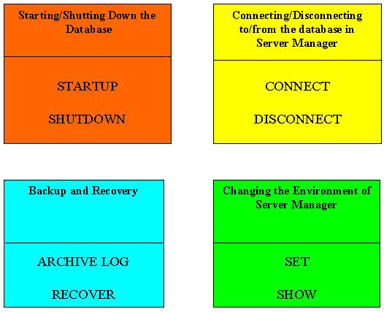 |  |
Explanation of Server Manager commands:
CONNECT:
This command is used to log in to the database from Server Manager.The syntax is:
CONNECT [username/password|INTERNAL] [@database] [AS [SYSOPER|SYSDBA]]
The various options of the commands are explained here.
username: The username must exist within the database. If it is not specified, then Server Manager will prompt you for one.
password: Must enter a password in order to connect. If it is not specified, then Server Manager will prompt you for it.
INTERNAL: Should rarely be used because it is needed for only a few DBA operations. You should connect AS SYSDBA instead.
AS SYSOPER: Allows a user to connect to the database if the user has been granted SYSOPER privilege.
AS SYSDBA: Allows a user to connect to the database if the user has been granted SYSDBA privilege.
DISCONNECT:
Use this command to disconnect from the current session (in the database) within Server Manager. The syntax is DISCONNECT.EXIT:
To quit Server Manager, use the EXIT command, which will return you to the operating system command line prompt. Any uncommitted work within Server Manager will be committed after issuing the EXIT command. The syntax for this command is EXIT.STARTUP:
This command is used to startup the database. You must be connected to the database as INTERNAL, SYSOPER, or SYSDBA to issue this command.The syntax for this command is:
STARTUP [FORCE] [RESTRICT] [PFILE=filename] [MOUNT|OPEN|NOMOUNT]
The various options are explained here.
FORCE:
Used to reboot the database while it is already running. The instance is shutdown and restarted. It is a good idea not to use this option on a regular basis.RESTRICT: Starts the database, but only those users with the RESTRICTED SESSION privilege can log in.
PFILE:
NOMOUNT:
MOUNT:
OPEN:
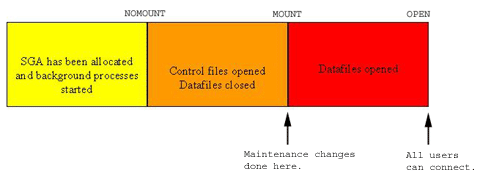
Here is a picture of the various stages of the database, which may aid in understanding.
SHUTDOWN:
This command is used to stop an Oracle instance, which also closes the database. You must be connected as INTERNAL, SYSOPER, or SYSDBA to issue this command.The syntax is:
SHUTDOWN [ABORT|IMMEDIATE|NORMAL]
The various options are explained here.
NORMAL: A normal shutdown waits until all active users are disconnected before stopping the instance. However, new user connections are prohibited once you enter this command. This option is the least disturbing to active users and takes the longest compared to the other three options.
IMMEDIATE:
ABORT: This is the fastest way to stop an instance and close the database. Active users and processes are stopped immediately. Therefore, rollback of open transactions cannot take place. The next time the database is started, Oracle will detect the previous crash and rollback any transactions that were not committed.
ARCHIVE LOG:
You can use this command to start and stop automatic archive logging, manipulate automatic archive log settings, and show details of the archive logs. You must be connected as INTERNAL, SYSOPER, or SYSDBA to issue this command.The syntax is:
ARCHIVE LOG [START] [STOP] [LIST] [NEXT] [ALL] [n] [TO destination]
The various options are explained here.
START: This option starts the automatic archiving log
background process,
ARCH. By default automatic archiving is disabled.
STOP: This option disables automatic archiving.
LIST: This option shows the details of the redo logs and whether archive log is enabled or not.
NEXT: This option "manually archives the next redo log file that has been filled"
ALL: This option "manually archives all online redo log files that have not been filled."
n: This option is where you can specify a sequence number,
which the ARCH background process
will assign to the archive log(s).
TO destination: This options allows you to specify the destination where
the ARCH background process archives the redo logs to.
The default location is c:\orawin95\database\archive.
RECOVER:
This command allows you to recover tablespaces, data files, or the entire database. You must be connected as INTERNAL, SYSOPER, or SYSDBA to issue this command.The syntax is:
RECOVER TABLESPACE tablespace_name [PARALLEL clause]
Or
RECOVER DATAFILE file_name [PARALLEL clause]
Or
RECOVER DATABASE [UNTIL] [USING BACKUP CONTROLFILE] [PARALLEL]
SET:
This command is where you can change the environment of Server Manager. There are various SET commands.For example, SET COMPATIBILITY [V6|V7|NATIVE] allows you to work with another version database, such as version 6 or 7, within Server Manager. If set to NATIVE, "it matches the version of the current database."
Another example, SET LOGSOURCE path allows you to specify the location of redo log files when used in conjunction with the RECOVER command.
SHOW:
This command displays all of current settings in Server Manager, which are set at by default or by the SET command.The syntax is:
SHOW parameter_name
In addition, the SHOW command can show two parameters that cannot be set using the SET command. The two parameters are:
Allows you to show what parameters are currently set
in the init.ora file for the database instance.
The syntax is:
SHOW PARAMETER parameter_name
The parameter_name, is what parameter you wish to view in the init.ora file.
For example, to view all parameters containing the word db, issue the command
SHOW PARAMETERS DB.
SGA: Allows you to view the total size of the SGA and the size of its various components.
HOST:
This command allows you to perform database administration functions outside of Server Manager "without exiting first."To do this, use the following syntax:
HOST TYPE c:\orawin95\ADMIN\orcl\pfile\init.ora
Note:the path specified above may not work on your machine because it is operating specific. Therefore, to find out the correct path, go to Start|Find and type in init.ora and search in the C drive.
INIT.ORA File
The init.ora file contains parameter settings, which tell Oracle exactly the environment the instance should run in. The DBA can manipulate the parameters within the init.ora file to improve "database performance, change database settings, and change default directory and naming conventions." (Fieldhouse) If you change the file, the changes will take place the next time the database is started. The init.ora file is located in the c:\orawin95\admin\orcl\pfile.
There are many parameters included the init.ora file. I will explain a few of the important parameters. Additional detail can be found in Personal Oracle8 Explorer, written by Richard Fieldhouse.
Common parameters
db_block_buffers
The db_block_buffers parameter specifies the number of buffers within the buffer cache of the CACHE. When the value of this parameter is increased, the amount of memory allocated for the SGA will increase. Therefore, database performance will improve because it is faster to retrieve data from caches in memory than reading the data from the hard drive.
log_archive_dest
The log_archive_dest parameter specifies the location (directory path) of the archived logs. This parameter is set when the database is running in Archive Log mode.
shared_pool_size
The shared_pool_size parameter specifies the size of the shared pool within the SGA. The shared pool is where the data dictionary and reusable SQL statements reside. When the value of this parameter is increased, the amount of memory allocated for the SGA will increase. Therefore, database performance will improve.